How to disable multifactor authentication
You can disable the multifactor authentication of your Dedibox account if you want to register a new authentication device.
How to disable multifactor authentication
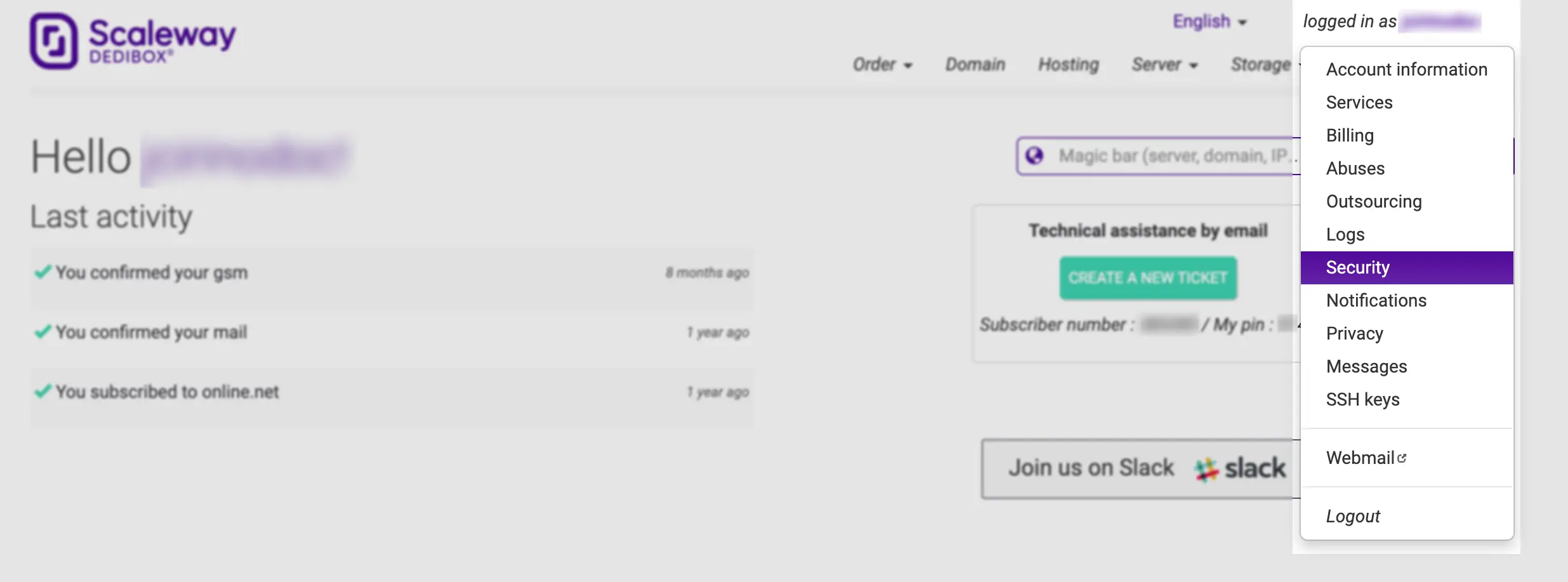
- Click your username, next to logged in as, in the top right corner of the Dedibox console. Then click Security in the pop-up menu.
- The security page displays. Click Disable two factor authentication.
- Enter a security token generated by your multifactor authentication application and click Confirm.
Multifactor authentication is now disabled, and you can log in with your identifier and password only.
How to restore access to your account
If you lose both your MFA app and backup codes, the only way to regain access to your account is through a manual identity verification.
To do so, make a request to our Trust and Safety team. You must make your request from the email address registered on your account. In your email, provide the following information:
- Your username
- The telephone number registered on your account
- If you have an individual account, your passport or local ID card
- If you have a corporate account, the certificate of incorporation and a copy of the last Dedibox invoice you received
Submit the complete set of required documents via email to document@scaleway.com
After analyzing your documents, our team will deactivate your two-factor authentication (2FA).
See Also
Still need help?Create a support ticket