GPU Instances - Quickstart
Console overview
Discover the GPU Instances interface on the Scaleway console.
Before you start
To complete the actions presented below, you must have:
Scaleway GPU Instances are virtual compute instances equipped with dedicated high-end Nvidia graphics processing units (GPUs). They are ideal for data processing, artificial intelligence, rendering, and video encoding. After you have created your GPU Instance, you can connect to it via SSH and run one of our ready-made Docker images to access a preinstalled environment with all your favorite AI libraries and tools preinstalled.
In addition to this, GPU Instances have all the features of our regular Instances, including flexible IPs, security groups, Private Networks, backups and more. When you are done using your GPU Instance, you can easily delete it from the Scaleway console.
How to create a GPU Instance
- Click CPU & GPU Instances in the Compute section of the side menu. The Instance dashboard displays.
- Click Create GPU Instance, then select Create CPU Instance. The Instance creation wizard displays.
- Select an Instance range based on your usage. Instance offers vary in pricing, processing power, memory, storage, and bandwidth. Discover the best Instance type for your needs.
- Choose an Instance configuration from the list and click the select icon. A pop-up displays.
- Select the Availability Zone in which you want to deploy your Instance. Then click Configure Instance.
- Complete the following steps:
- Name your Instance, or leave the randomly-generated name in place. Optionally, you can add tags to help you organize your Instance.
- Image: Pick an operating system image suitable for your GPU Instance. For example, select Ubuntu Noble GPU OS 13 (NVIDIA), which comes with preinstalled NVIDIA drivers and an NVIDIA Docker environment. You can customize your working environment using Docker with our provided Docker images or your own containers.
- Add volumes, which are storage spaces used by your Instances. A block volume with a default name and 5,000 IOPS is automatically provided for your system volume. You can customize this volume and attach up to 16 local and/or block type volumes as needed.
- Configure network of the Instance.
- Leave the checkbox ticked to assign a Public IPv4 to the Instance. You can either allocate a new IPv4 address or select one or multiple existing IPv4s. Alternatively, uncheck the box if you do not want an IPv4.
- Leave the checkbox ticked to assign a Public IPv6 to the Instance. You can either allocate a new IPv6 address or select one or multiple existing IPv6s. Alternatively, uncheck the box if you do not want an IPv6.
- (Optional) Click Cloud-init to set up a cloud-init configuration. Otherwise, leave this option set to its default values. Cloud-init scripts are the standard way to automate Instance setup, such as setting up software, users, and system configurations at the first boot.
- Verify the SSH keys that will give you access to your Instance.
- Click Review to see a order summary. Verify the estimated cost of your Instance, based on the specifications you chose.
- Click Create Instance. The creation of your Instance begins, and you will be informed when the Instance is ready.
How to connect to your GPU Instance
See our documentation on how to connect to your Instance via SSH.
How to launch a Docker container
To access a preinstalled working environment with all your favorite Python packages, you need to launch a Docker container.
- Choose one of our Docker AI images (eg Tensorflox, Pytorch, Jax) based on your needs.
- Run the following command to launch the Docker container. In the following example, we launch a container based on the Tensorflow image:
docker run --runtime=nvidia -it --rm -p 8888:8888 -p 6006:6006 rg.fr-par.scw.cloud/scw-ai/tensorflow:latest /bin/bash
How to use the preinstalled environment
When you run your Docker container as shown above, the container launches and you are taken to its ai directory, where the Pipenv virtual environment is already activated.
Launching an application in your local browser
Some applications, such as Jupyter Lab, Tensorboard and Code Server, require a browser to run. You can launch these from the ai virtual environment of your Docker container, and view them in the browser of your local machine. This is possible thanks to the addition of port mapping arguments when launching a container with the docker run command. In our example, we added the port mapping arguments -p 8888:8888 -p 6006:6006 when we launched our container, mapping 8888:8888 for Jupyter Lab and 6006:6006 for Tensorboard.
-
Launch an application. Here, we launch Jupyter Lab:
jupyter-labWithin the output, you should see something similar to the following:
[I 2022-04-06 11:38:40.554 ServerApp] Serving notebooks from local directory: /home/jovyan/ai [I 2022-04-06 11:38:40.554 ServerApp] Jupyter Server 1.15.6 is running at: [I 2022-04-06 11:38:40.554 ServerApp] http://7d783f7cf615:8888/lab?token=e0c21db2665ac58c3cf124abf43927a9d27a811449cb356b [I 2022-04-06 11:38:40.555 ServerApp] or http://127.0.0.1:8888/lab?token=e0c21db2665ac58c3cf124abf43927a9d27a811449cb356b [I 2022-04-06 11:38:40.555 ServerApp] Use Control-C to stop this server and shut down all kernels (twice to skip confirmation). -
On your local computer, open a browser window and enter the following URL. Replace
<ip-address>with the IP address of your Scaleway GPU Instance, and<my-token>with the token shown displayed in the last lines of terminal output after thejupyter-labcommand<ip-address>:8888/lab?token=<my-token>Jupyter Lab now displays in your browser. You can use the Notebook, Console, or other features as required:
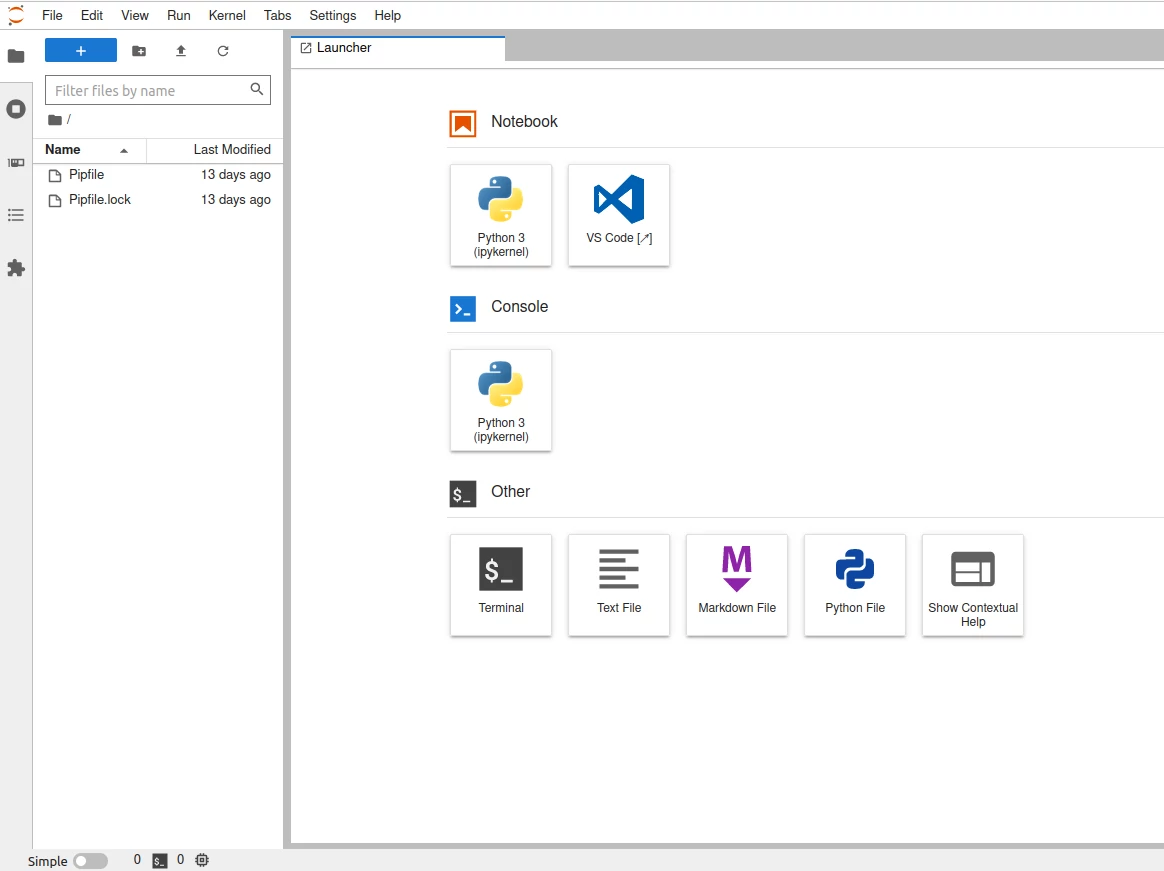
You can display the GPU Dashboard in Jupyter Lab to view information about CPU and GPU resource usage. This is accessed via the System Dashboards icon on the left side menu (third icon from the top).
-
Use CTRL+C in the terminal window of your GPU Instance / Docker container to close down the Jupyter server when you have finished.
Exiting the preinstalled environment and the Docker container
When you are in the activated Pipenv virtual environment, your command line prompt will normally be prefixed by the name of the environment. Here, for example, from (ai) jovyan@d73f1fa6bf4d:~/ai we see that we are in the activated ai environment, and from jovyan@d73f1fa6bf4d:~/ai that we are in the ~/ai directory of our container:
-
Type
exitthe following command to leave the preinstalledaienvironment.You are now outside the preinstalled virtual environment.
-
Type
exitagain to exit the Docker container.Your prompt should now look similar to the following. You are still connected to your GPU Instance, but you have left the Docker container:
root@scw-name-of-instance:~# -
Type
exitonce more to disconnect from your GPU Instance.