Establishing a Site-to-Site VPN between Scaleway and AWS
This tutorial explains how to establish a dynamic Site-to-Site (S2S) VPN between Scaleway and AWS using the Scaleway Managed VPN Gateway.
The configuration uses:
- IPsec over IKEv2
- BGP for dynamic routing
- Route propagation between both environments
Before you start
To complete the actions presented below, you must have:
- A Scaleway account with permissions to manage VPC and VPN resources
- An AWS account with permissions to manage VPC and VPN resources
- A VPC configured in both Scaleway and AWS
- Administrative access to configure both environments
Architecture overview
The connection is established between:
- A Scaleway Managed VPN Gateway
- An AWS Virtual Private Gateway
- A BGP session over an IPsec tunnel
Routes are dynamically exchanged between:
- Scaleway Private Network CIDR (example:
172.16.64.0/22) - AWS VPC CIDR (example:
172.31.0.0/16)
Creating the Scaleway VPN Gateway
- Create or select a VPC in the Scaleway console.
- Create a Private Network within the VPC.
- Deploy a Managed VPN Gateway attached to that Private Network.
- Note the following information:
- The public IPv4 address of the Scaleway VPN Gateway (e.g.,
163.172.175.212). - The Scaleway ASN:
12876.
- The public IPv4 address of the Scaleway VPN Gateway (e.g.,

Configuring AWS
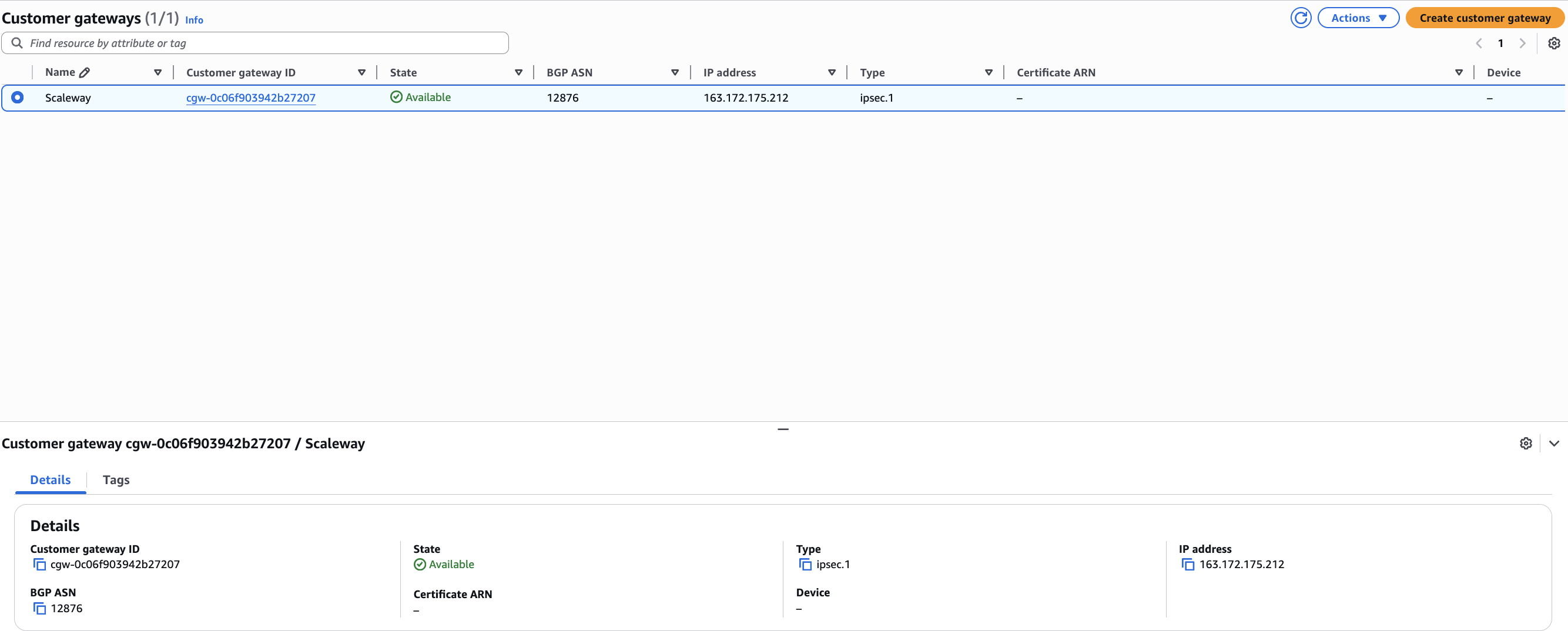
Create the AWS Customer Gateway
- Create a Customer Gateway in the AWS console.
- Configure the following parameters:
- Type: IPsec.
- IP address: The public IP of your Scaleway VPN Gateway.
- BGP ASN:
12876.
Create the AWS Virtual Private Gateway
-
Create a Virtual Private Gateway and attach it to your AWS VPC.
-
Configure an ASN (e.g.,
65000).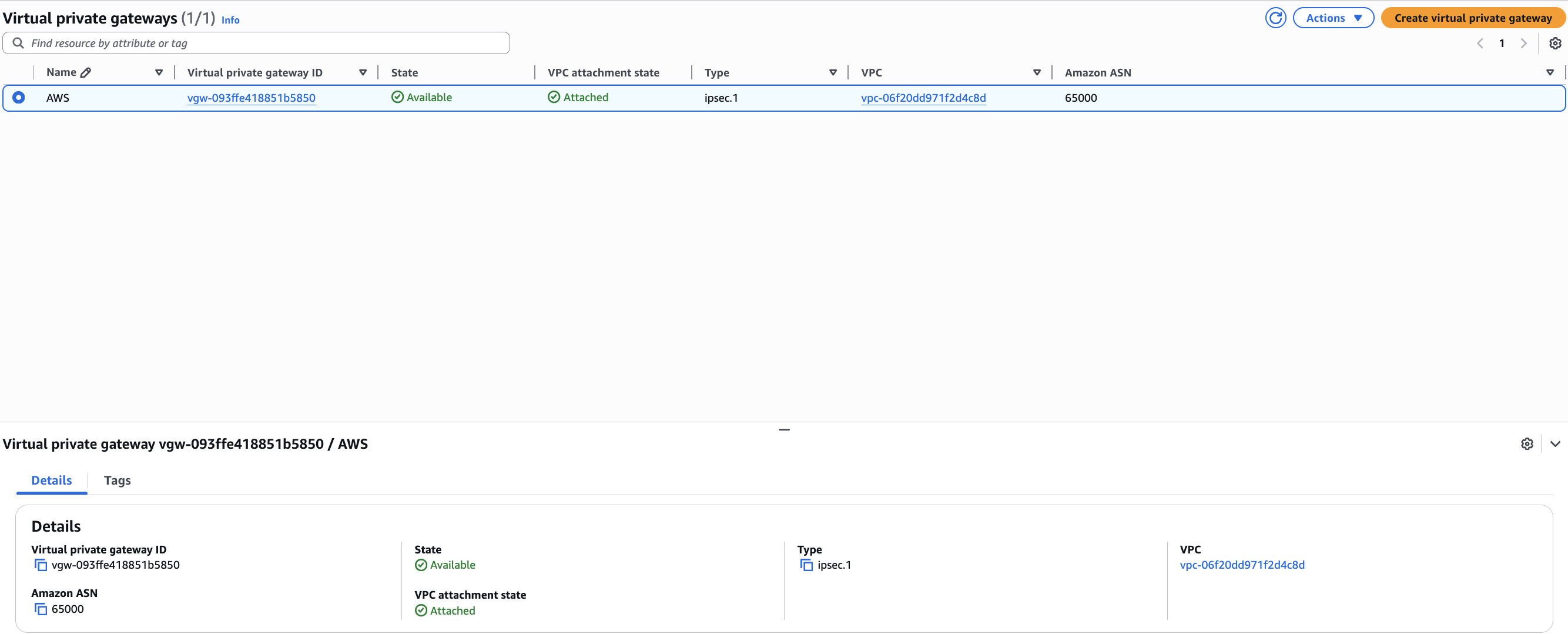
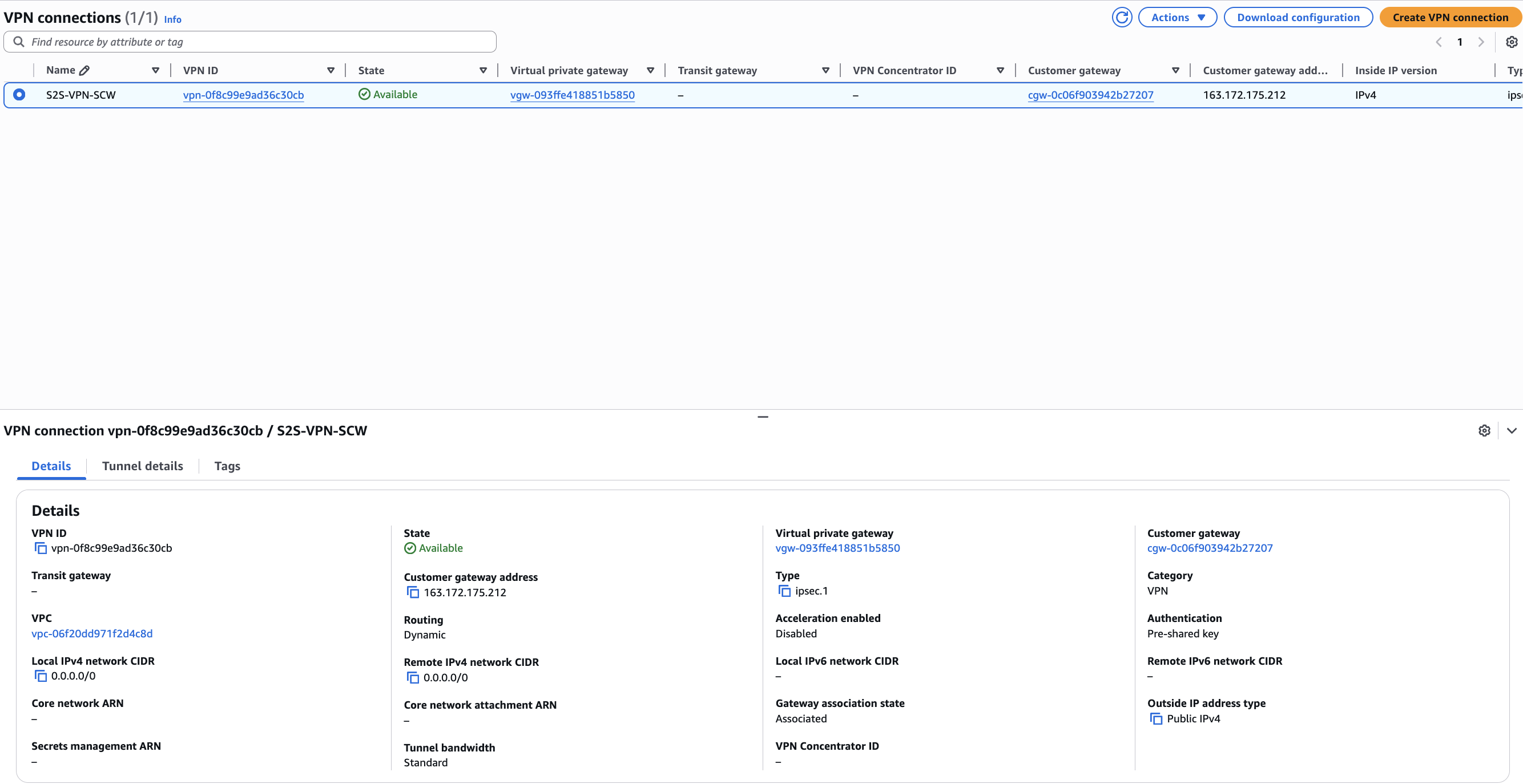
Create the AWS VPN connection
-
Create a new VPN Connection using the following settings:
- Routing Priority: Dynamic (requires BGP).
- Virtual Private Gateway: Select the gateway created above.
- Customer Gateway: Select the gateway created in the previous step.
-
After the connection is created, collect the following details:
- Tunnel public IP (e.g.,
13.37.176.32). - BGP peer private IP (e.g.,
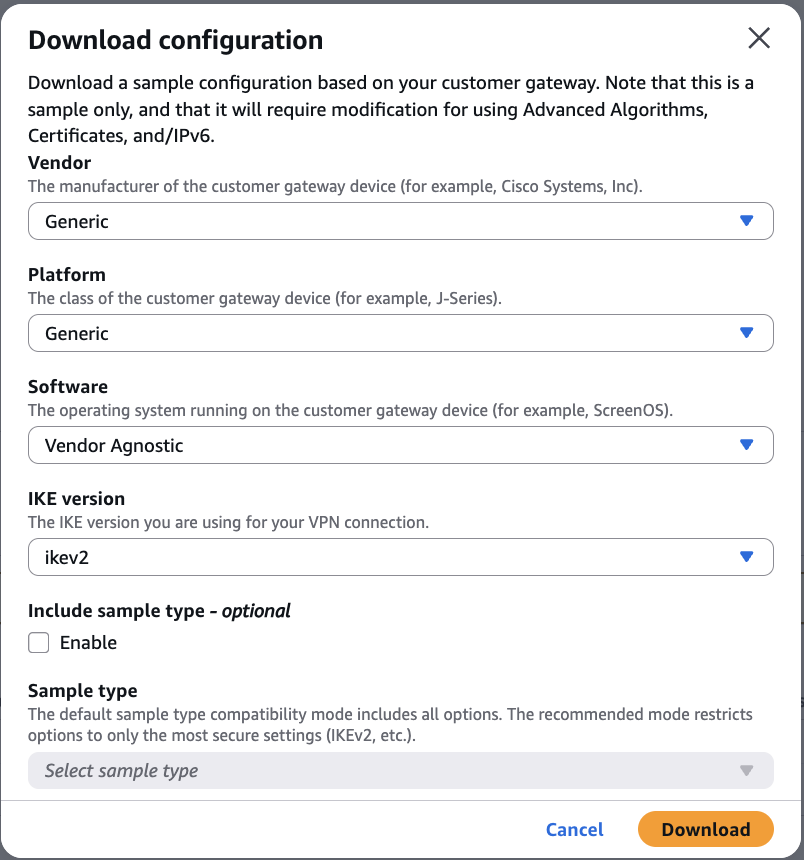
169.254.162.101). - Download the Generic configuration file for reference.
- Tunnel public IP (e.g.,
Creating the Scaleway Customer Gateway
In the Scaleway console, create a Customer Gateway using:
- Public IP: The AWS tunnel public IP.
- ASN: The ASN defined on the AWS Virtual Private Gateway (e.g.,
65000).

Configuring BGP routing policy
Define a routing policy in Scaleway to control traffic:
- Prefix filter in: Enter your AWS VPC CIDR.
- Prefix filter out: Enter your Scaleway Private Network CIDR.
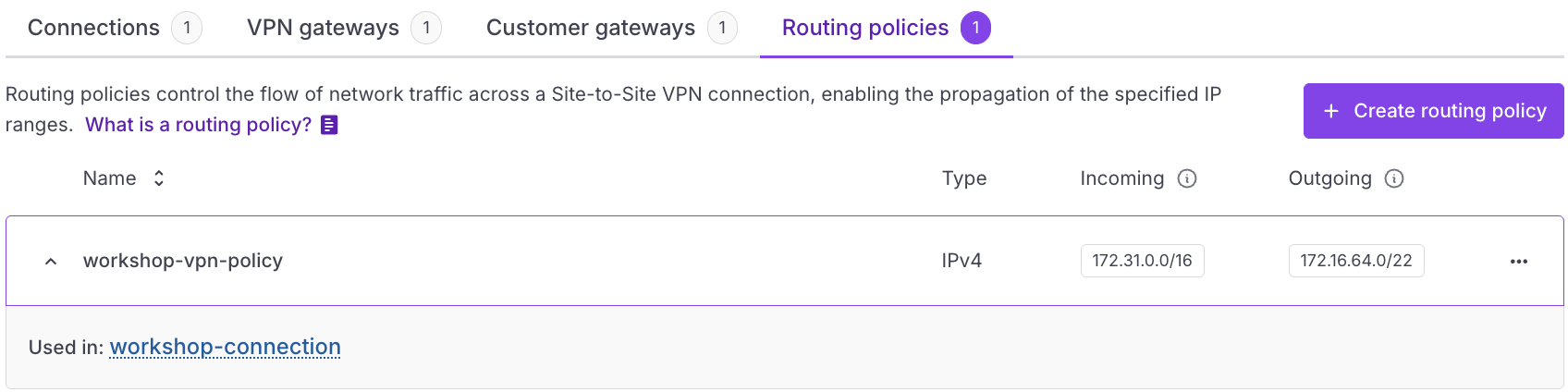
This ensures that only authorized routes are exchanged.
Configuring the VPN connection in Scaleway
-
Attach the Scaleway VPN Gateway.
-
Attach the AWS Customer Gateway.
-
Enable Route propagation.
-
Select the Routing policy created in the previous step.

-
Configure the BGP settings:
- Provide a private IP within the AWS inside CIDR range.
- Provide the AWS BGP peer private IP.
Retrieving and configuring the pre-shared key (PSK)
Scaleway automatically generates a PSK and stores it in Secret Manager when the VPN connection is created.
List the generated VPN secret
Use the Scaleway CLI to find your secret:
scw secret secret list region=fr-par -o json | jq .Access and decode the PSK
-
Retrieve the Base64-encoded secret value using the
idfrom the previous step:scw secret version access <SECRET_ID> revision=latest region=fr-par -
Decode the value to obtain your cleartext PSK:
echo '<BASE64_PSK>' | base64 -d
Update the pre-shared key
Access your VPN Tunnel settings in the AWS Console and update the pre-shared key with the decoded value.

Aligning IPsec parameters
Both environments must use identical IPsec settings for the tunnel to establish.
| Parameter | Value |
|---|---|
| IKE Version | IKEv2 |
| Phase 1 Encryption | AES-256 |
| Phase 1 Integrity | SHA2-256 |
| Phase 1 DH Group | 14 (MODP2048) |
| Phase 2 Encryption | AES-256 |
| Phase 2 Integrity | SHA2-256 |
| Phase 2 DH Group | 14 |
| Startup Action (AWS) | Start |
Verifying the connection
On AWS
In the Tunnel Details tab, verify the following statuses:
State: upBGP: Established
On Scaleway
In the VPN connection dashboard, verify the following statuses:
TunnelStatus: upBgpStatusIPv4: up
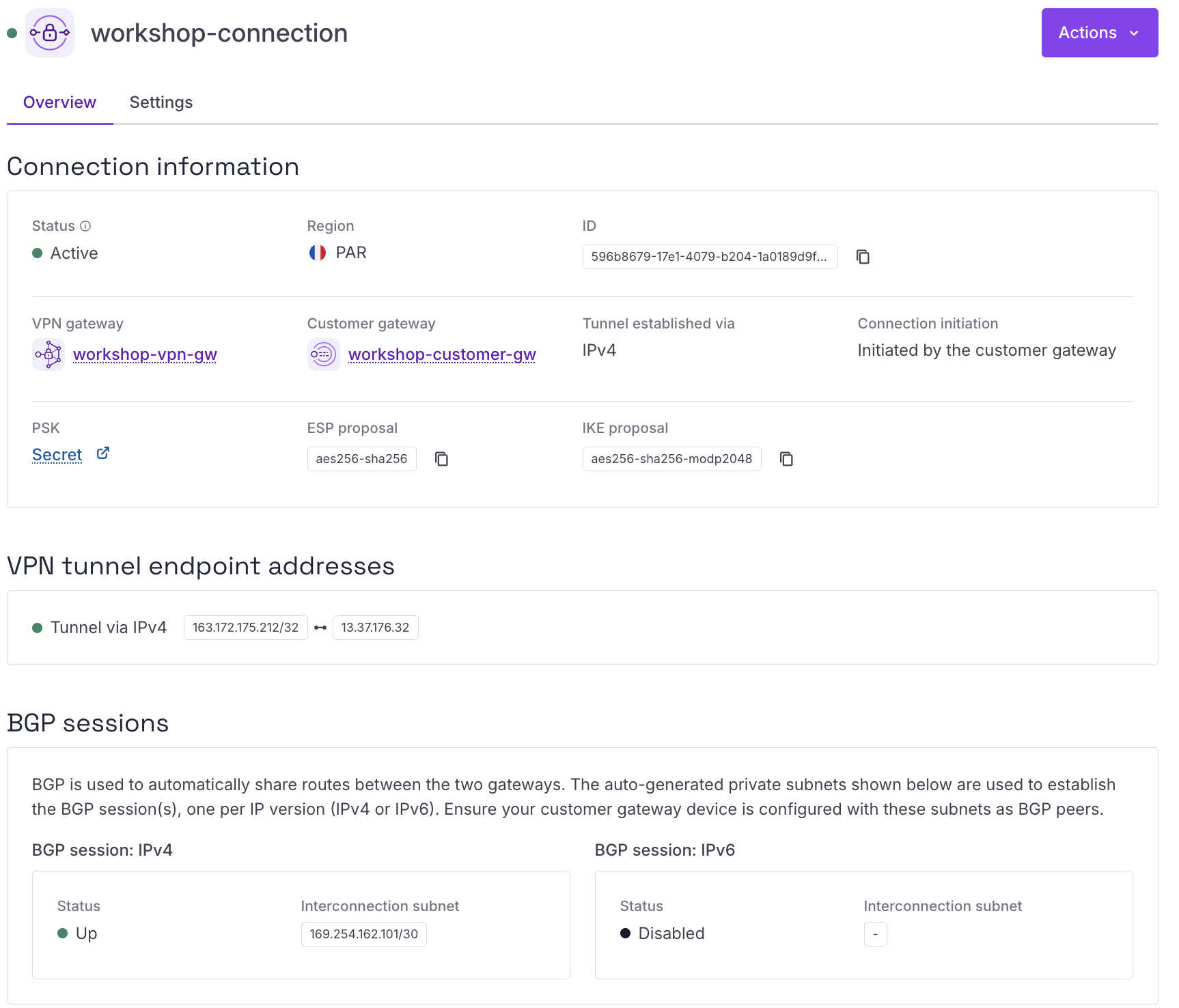
Result
You have successfully established a dynamic Site-to-Site VPN between Scaleway and AWS using:
- Managed VPN Gateway
- BGP route exchange
- Secure IPsec encryption
- Dynamic route propagation between VPCs
Your VPCs can now communicate securely using BGP for automated route management.