How to create and manage a customer gateway
A customer gateway is one of the essential building blocks of a Site-to-Site VPN. It provides the connection point on the remote side of a VPN tunnel.
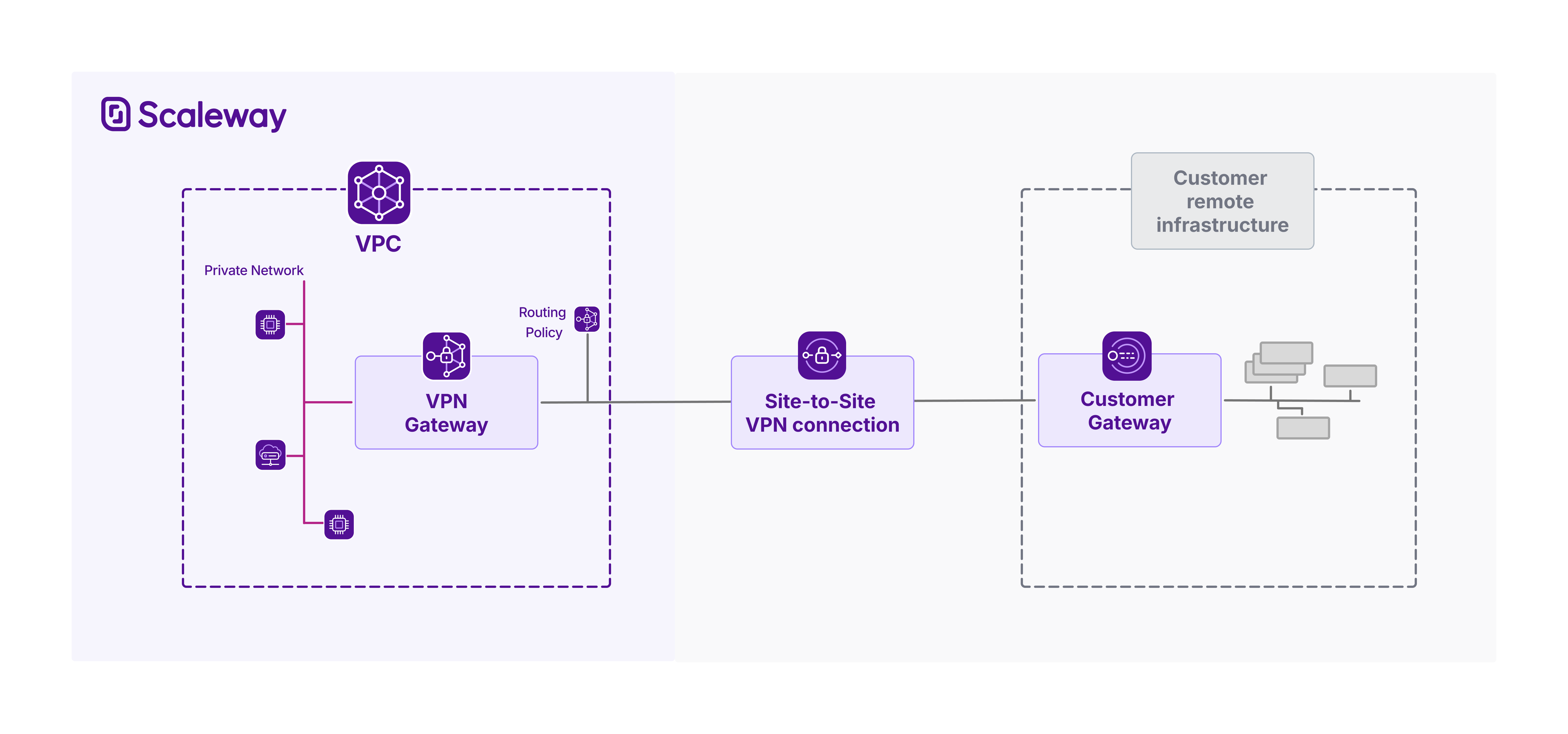
This document explains how to create and manage a customer gateway with the Scaleway console.
Before you start
To complete the actions presented below, you must have:
- A Scaleway account logged into the console
- Owner status or IAM permissions allowing you to perform actions in the intended Organization
How to create a customer gateway
-
Click Site-to-Site VPN in the Network section of the Scaleway console side menu. A listing of your VPN connections displays.
-
Click the Customer gateways tab, then Create Customer gateway. The creation wizard displays.
-
Choose a region in which to create your customer gateway. The resource will be created in this geographical location. Customer gateways must be in the same region as the resources (VPN gateways, connections etc.) that you link them with to create a Site-to-Site VPN tunnel.
-
Define connectivity parameters, to supply Scaleway with essential details of your remote customer gateway device:
- IP address: Provide the public IP address(es) of your customer gateway device, used to establish the VPN tunnel. If you want to be able to create two connections between this gateway and a single VPN gateway (for dual tunnels, increasing redundancy), provide an address for each IP type.
- ASN: Provide the unique identifier assigned to the customer's network, used by BGP (Border Gateway Protocol) to exchange routing information with other networks.
-
Enter a name and (optionally) tags for the customer gateway.
-
Click Create customer gateway to finish.
Your gateway is created, and you are directed to its Overview page.
To continue setting up a Site-to-Site VPN, create a routing policy or create a connection.
How to view a customer gateway's details
-
Click Site-to-Site VPN in the Network section of the Scaleway console side menu. A listing of your VPN connections displays.
-
Click the Customer gateways tab.
-
Use the region selector at the top of the page to filter for the region of the customer gateway you want to configure, then click the gateway in the listing. The gateway's Overview page displays.
Here you can view the gateway's:
- Region
- ID
- ASN
- Public IP addresses
- Number of VPN connections it is used in
How to edit a customer gateway
Currently, the only parameters of a customer gateway that can be edited after creation are its name and tags.
-
Click Site-to-Site VPN in the Network section of the Scaleway console side menu. A listing of your VPN connections displays.
-
Click the Customer gateways tab.
-
Use the region selector at the top of the page to filter for the region of the customer gateway you want to configure, then click the gateway in the listing. The gateway's Overview page displays.
-
Click the Settings tab.
-
Make your edits as required:
- Click directly on the gateway's name at the top of the page to edit it.
- Type new tags directly in the Tags box, or use the x icon to remove an existing tag.
How to configure a customer gateway device
Your customer gateway device is a real physical or software-based networking device, located on the remote network you want to connect to your Scaleway VPC. The customer gateway that you create in Scaleway is a logical representation of this device.
Creating the customer gateway on the Scaleway side does not automatically configure the corresponding physical or virtual device. This must be set up separately by you or your network administrator to establish the Site-to-Site VPN connection.
See our dedicated page for advice on configuring your customer gateway device.
How to delete a customer gateway
You must deactivate route propagation on any VPN connections linked to the customer gateway, before you can delete the gateway.
-
Click Site-to-Site VPN in the Network section of the Scaleway console side menu. A listing of your VPN connections displays.
-
Click the Customer gateways tab.
-
Use the region selector at the top of the page to filter for the region of the VPN gateway you want to configure, then click the gateway in the listing. The gateway's Overview page displays.
-
Click the Settings tab.
-
Click Delete customer gateway.
A pop-up displays, informing you that any VPN connections using this gateway will be auto-deleted.
You must manually delete any other objects associated with the gateway, such as VPN gateways or routing policies, if you do not need them anymore.
-
Type DELETE to confirm you want to proceed, then click the Delete button.
The gateway is deleted, and you are returned to the list of your customer gateways.