How to create and manage routing policies
A routing policy is one of the essential building blocks of a Site-to-Site VPN:
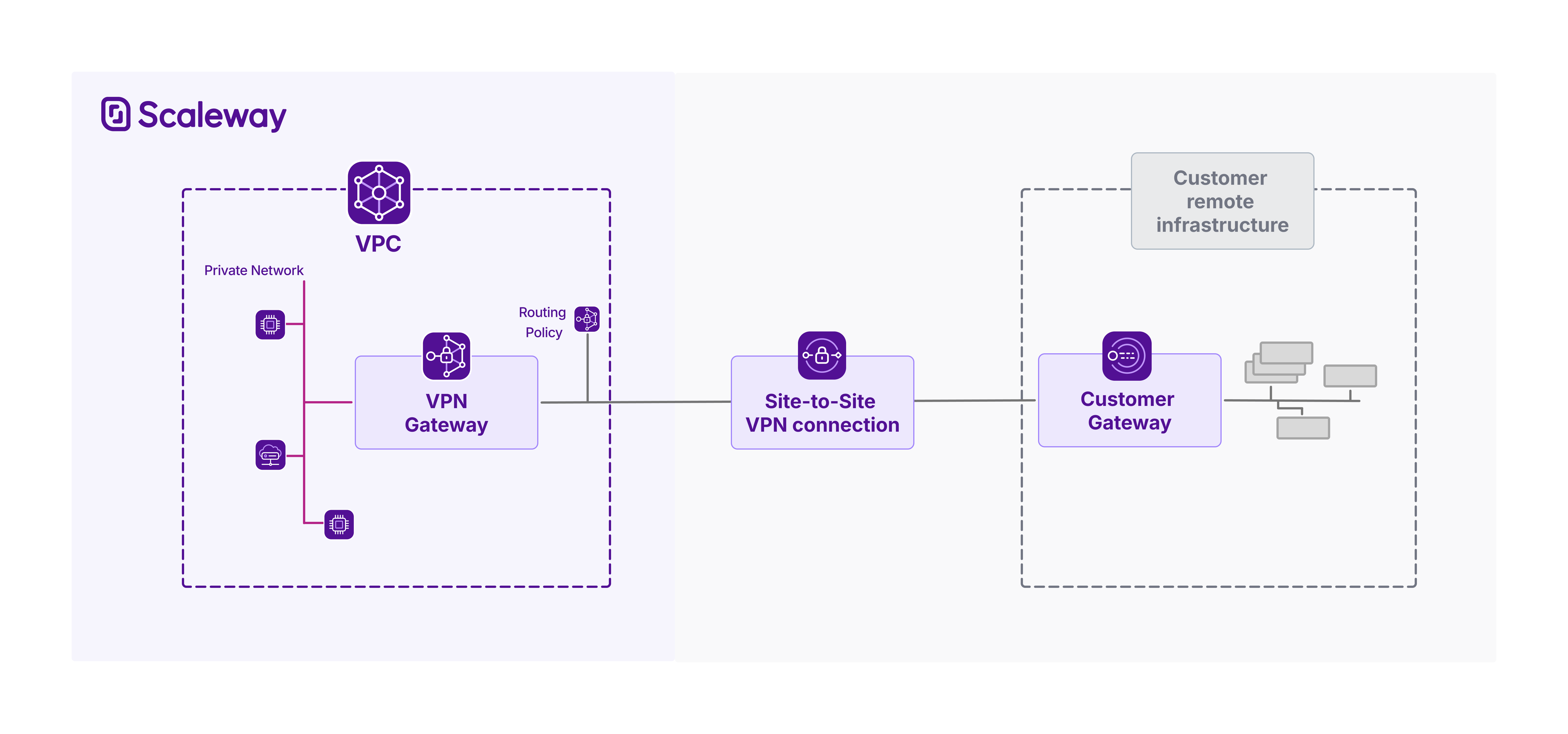
A Site-to-Site VPN connection uses Border Gateway Protocol to exchange routing information between the VPN gateway on the Scaleway side, and the customer gateway on the remote side. Each side advertises IP prefixes for its own internal subnets and resources, to allow the other side to dynamically learn and update its internal routes, facilitating efficient traffic flow.
However, by default, all routes through a VPN tunnel are blocked. You must create and attach routing policies, to set IP prefix filters for the route advertisements you want to whitelist. This facilitates traffic flow through the VPN tunnel.
A VPN connection must have a minimum of one and a maximum of two attached routing policies, one for each IP traffic type to be routed (IPv4 and/or IPv6).
When creating a routing policy, you specify one or many IP ranges representing the outgoing routes to announce from the Scaleway VPN gateway, and one or many IP ranges representing the incoming route announcements to accept from the customer gateway. When route propagation is activated, the route ranges defined in the routing policy are whitelisted, and traffic can flow through the tunnel along these routes.
How to create a routing policy
-
Click Site-to-Site VPN in the Network section of the Scaleway console side menu. A listing of your VPN connections displays.
-
Click the Routing policies tab, then Create routing policy. The creation wizard displays.
-
Choose a region for the policy. It can only be attached to VPN connections within the same region.
-
Define the type of IP traffic to be covered by the routing policy.
-
Whitelist the outgoing routes to allow. For each entry:
-
Enter an IP prefix to define a range of route announcements to whitelist, e.g.
172.16.4.0/22. -
Click Add when complete.
-
-
Whitelist the incoming routes to allow, in the same way you did for outgoing routes. Outgoing routes concern announcements to accept from the remote infrastructure. Traffic can be routed through the VPN tunnel from your Scaleway VPN gateway to your remote infrastructure along these routes.
-
Enter a name for the policy, or leave the randomly-generated name in place. Optionally, you can also add tags.
-
Click Create routing policy.
The policy is created, and you are returned to the listing of your routing policies.
Remember to attach the policy to a VPN connection for it to take effect. Each VPN connection can have only one IPv4 and one IPv6 policy attached to it, but a single routing policy can be attached to multiple VPN connections.
If you have not already, create a VPN connection to finish setting up your Site-to-site VPN.
How to edit an existing routing policy
-
Click Site-to-Site VPN in the Network section of the Scaleway console side menu. A listing of your VPN connections displays.
-
Click on the Routing policies tab. A list of your routing policies displays. Use the region selector at the top of the page to filter for the region of the routing policy you want to edit.
-
Click more icon next to the routing policy to edit, and select Edit in the menu that displays.
-
The Edit routing policy wizard displays. See the dedicated documentation on creating and attaching a routing policy for help with routing policies.
-
Make the required edits, and click Edit routing policy.
A warning displays, to remind you that modifications will immediately be propagated on VPN connections using this policy.
-
Click Save.
The policy is modified and modifications are immediately applied.
How to attach a routing policy to a connection
See our dedicated documentation.
How to delete a routing policy
-
Click Site-to-Site VPN in the Network section of the Scaleway console side menu. A listing of your VPN connections displays.
-
Click on the Routing policies tab. A list of your routing policies displays. Use the region selector at the top of the page to filter for the region of the routing policy you want to delete.
-
Click more icon next to the routing policy to delete, and select Delete in the menu that displays.
A pop-up displays, informing you that this action will permanently delete the routing policy.
-
Click Delete policy to confirm.
The routing policy is deleted, and you are returned to the Routing policies tab.