How to outsource your Dedibox
Outsourcing a Dedibox server allows you to delegate the technical management of your dedicated server to another Scaleway Dedibox account, while keeping full ownership and control of your main account.
When you outsource a server:
- The recipient gains access to manage the server (e.g., monitor status, reboot, access console, etc.).
- They cannot view or modify billing information or services in your primary account.
- You retain full control over your account settings and subscriptions.
This feature is ideal for delegating server administration to IT teams, managed service providers, or technical partners—without compromising security or financial oversight.
Before you start
To complete the actions presented below, you must have:
- An active Scaleway Dedibox account logged into the Dedibox console
- At least one dedicated server
- The Scaleway console login (identifier) of the recipient account
How to outsource your Dedibox server
- In the top navigation bar, click Server > Server list to view all your servers.
- Select the server you wish to outsource, then click Manage to open its details page.
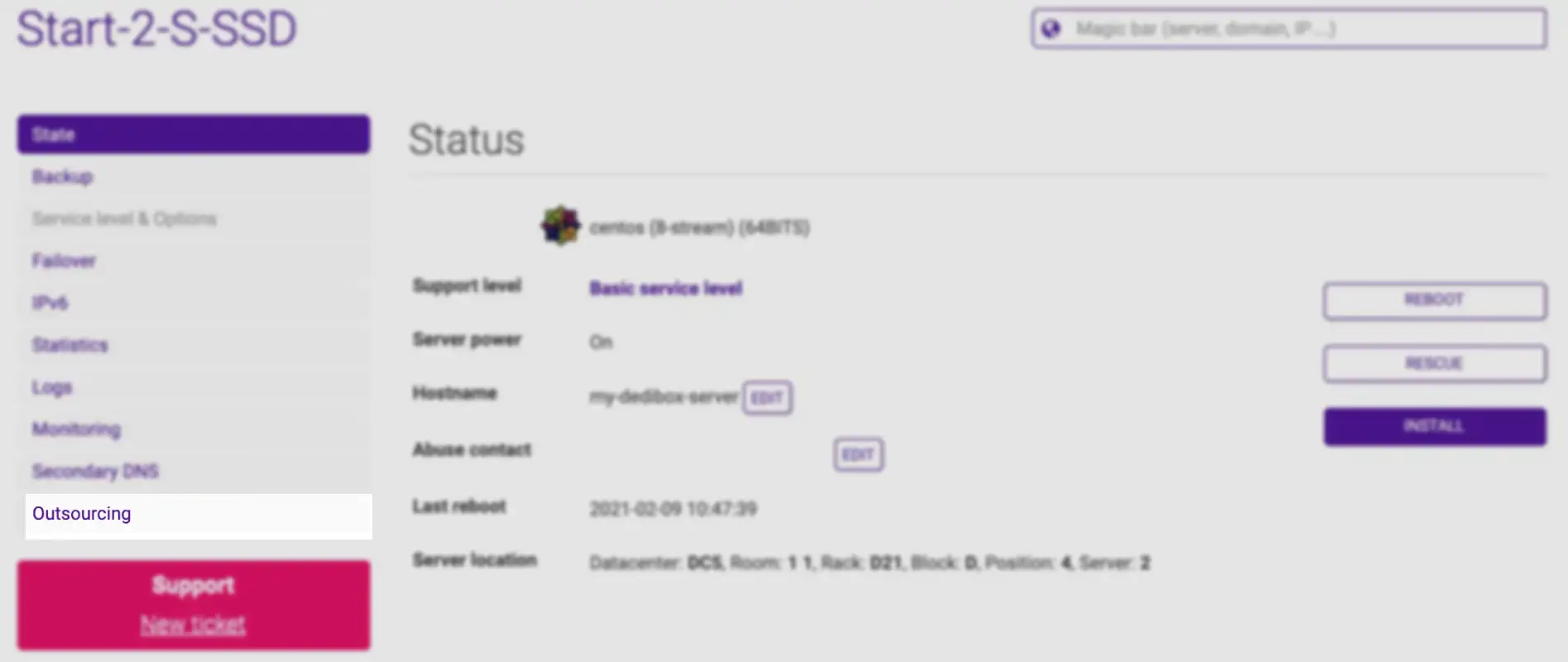
- In the left-hand menu, click Outsourcing.
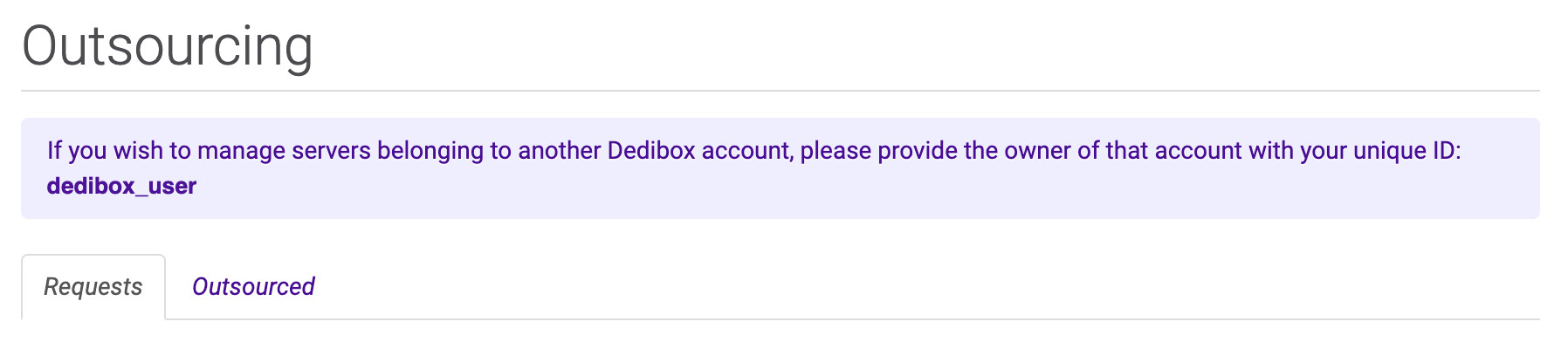
The outsourcing form will appear.
- Enter the Scaleway console identifier of the recipient account.
- Click Send request. The recipient will receive a notification in their console and must accept the request to take over technical management.
After the request is accepted
Once accepted:
- The server appears in the recipient’s console under Outsourced Servers.
- They can perform technical actions such as:
- Rebooting the server
- Accessing the IPMI console
- Monitoring hardware status
- You continue to manage billing and server ownership.
To revoke access, you can cancel the outsourcing at any time from the same menu.
See Also
Still need help?Create a support ticket