Understanding Scaleway IAM
Identity and Access Management (IAM) lets you securely control and share access to your Scaleway resources. This page aims to give you an overview of how you can use IAM, and explains some of the terminology and processes in a logical and chronological order.
Organizations, Projects, and resources: the basics
Organizations, Projects, and resources are fundamental Scaleway concepts. Knowing these concepts will help you understand how IAM lets you manage and share access.
Your Organization
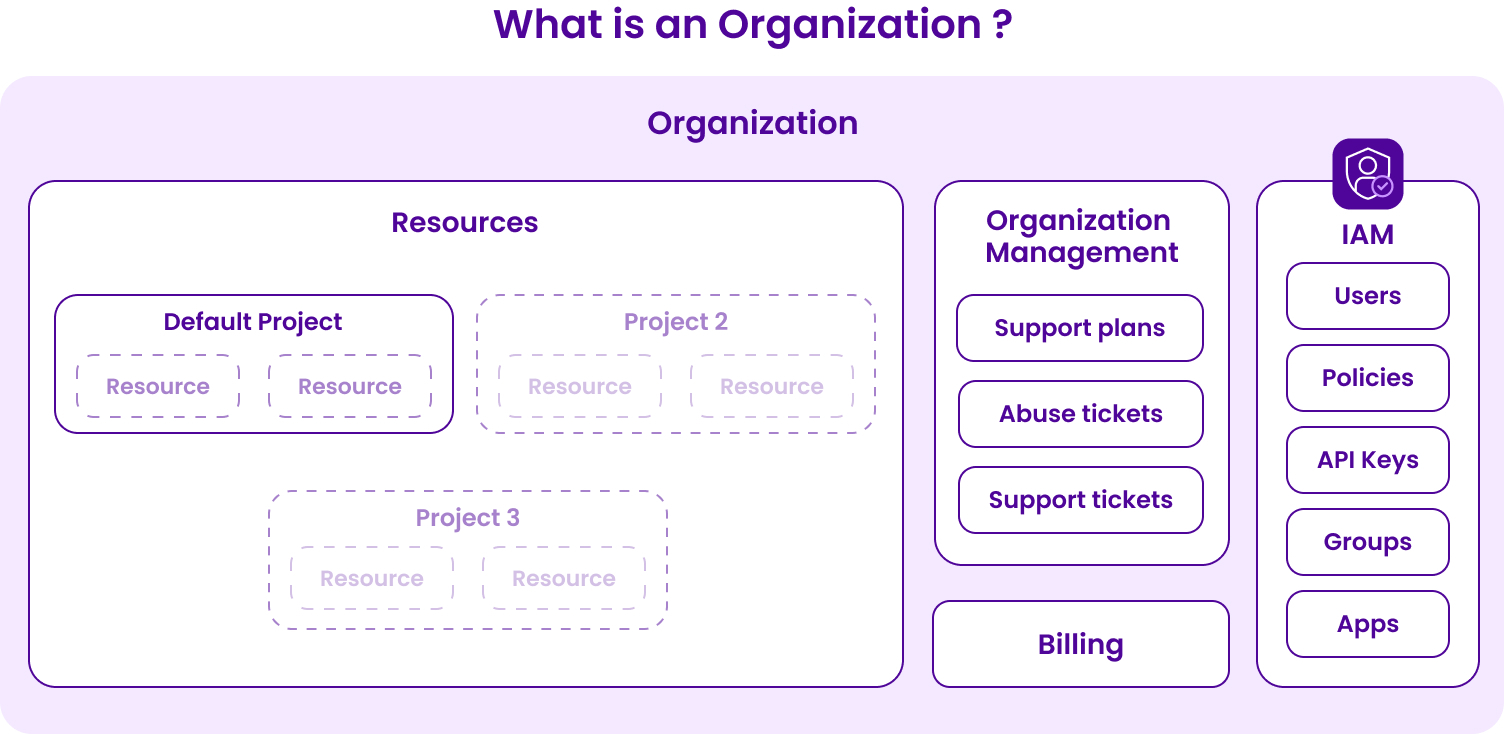
When you create your Scaleway account, an Organization is automatically created, of which you are the Owner. You have full access and rights to all resources within your own Organization, as well as to Organization management features (support plans, abuse tickets, support tickets, etc.), billing and IAM features, as shown in the following diagram.
Creating Resources and Projects
Once you set up your account, you can start creating resources such as Instances, Kubernetes Kapsule, Elastic Metal servers, etc. All resources that you create are added to your Organization's default Project. However, you can choose to create multiple other Projects in your Organization, which lets you separate and group your resources as you wish.
IAM
Sharing access: users and policies
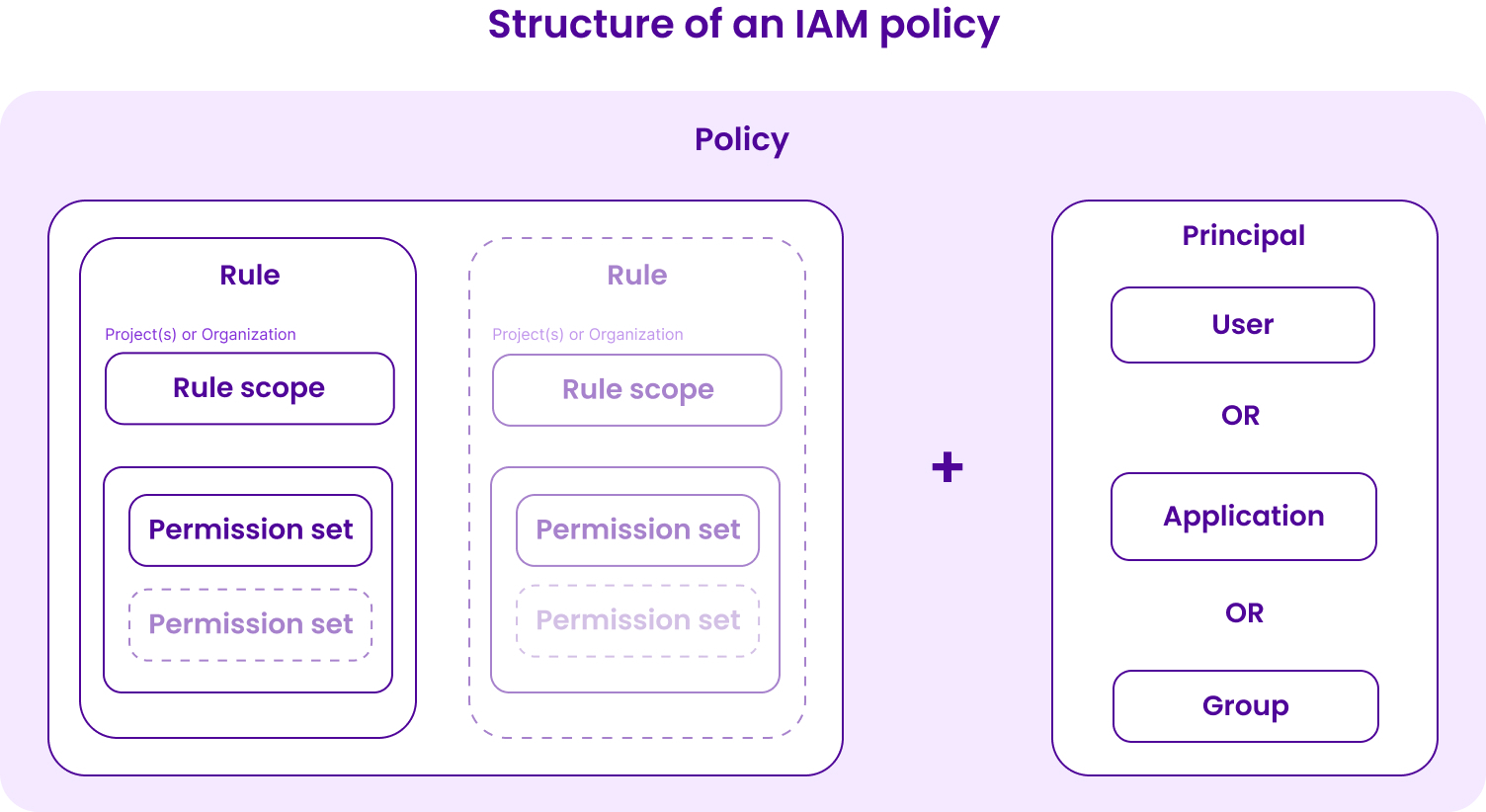
IAM allows you to give someone else permission to view, edit, create, or manage resources (or features such as billing or support tickets) in your Organization:
-
Create a new IAM Member. You can provide them the credentials necessary to log in as a Member in your Organization.
-
Give the user permissions via policies. Create a policy to define what permissions and access rights you want the user to have in your Organization.
Consider the following examples of contrasting use cases for permissions:
- Use case 1 - Extensive permissions: You give full rights to view and manage billing, IAM, and Organization management features in your Organization, along with full rights to create, edit, and view any type of resources in any and all current and future Projects.
- Use case 2 - Limited permissions: You give very restricted rights to simply view and list a single type of resource in one defined Project, e.g., “list Instances in Project A only”.
In reality, you will often want to give permissions sitting somewhere between the two example use cases. With IAM, you can define permissions in a very granular way. When you create your policy rules, you can grant exactly the rights (permission sets) you want to give to each user for each specific type of resource. You can also give different permissions for different Projects and for different Organization-level features such as billing, support and IAM, thanks to the scope feature.
See our full documentation on policies for detailed instructions.
Creating IAM applications
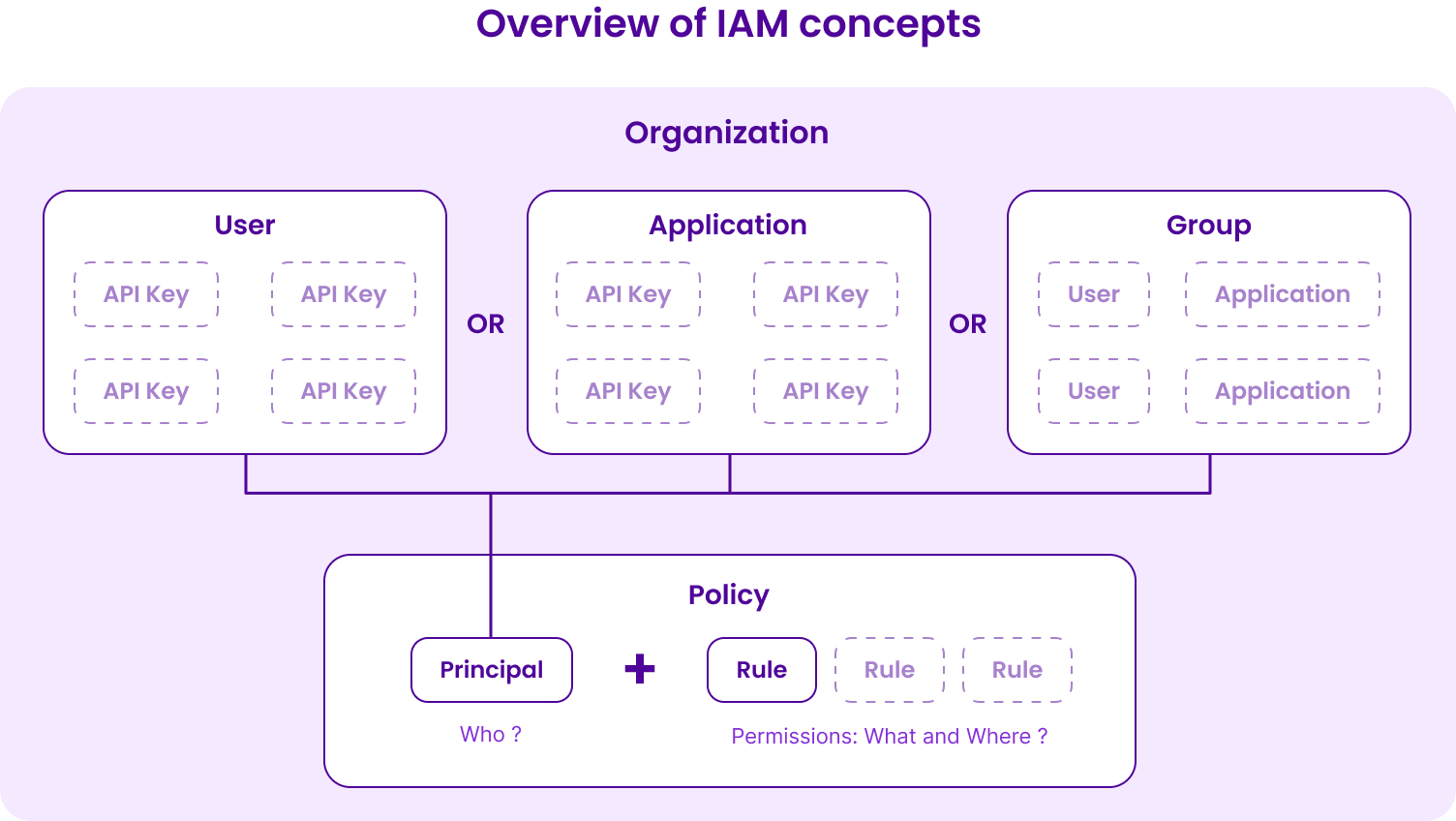
You may want to give access to your Organization and resources not to a specific human user, but to an application or service, e.g., when setting up a production environment. You can do this by creating IAM applications. This feature lets you give programmatic access to resources by creating API keys that are not linked to a specific human, making your production code more robust. As with users, you can give permissions and access rights to each IAM application via policies.
Defining groups
When you create a policy to define permissions for IAM users and applications, the Groups feature lets you apply one policy to multiple users and/or applications at the same time. For example, you can create a group called “Billing”, add all the users/applications who need access to billing, and then attach a policy to the group which gives rights to manage your Organization's billing.
Generating API keys
You can use the Scaleway console to create and manage resources without needing an API key. However, an API key is necessary if you want to use the Scaleway API.
With the introduction of IAM, an API key is now associated with an IAM user or application, and is always scoped per Organization. API keys inherit their permissions from their bearer (the user or application). You can generate one or several API keys for yourself in each of your Organizations via the console. If you are creating an IAM application, you can also generate API keys for that application. You cannot generate API keys for other human IAM users regardless of your IAM permissions, though you may be able to delete existing API keys belonging to others within your Organization.
Getting started
Check out the quickstart or full range of IAM documentation to learn more.