Create a Windows Server golden image
A Windows Server golden image lets you preconfigure a set of tools and settings so that every Windows Instance you create starts with them.
This page explains how to build a Windows Server golden image for consistent, repeatable deployments.
Before you start
To complete the actions presented below, you must have:
- A Scaleway account logged into the console with access to Instances and Block Storage.
- An SSH key configured for accessing Scaleway Instances.
- Familiarity with command-line tools, including the Scaleway CLI.
See the Scaleway Instances documentation for details on setting up Instances and related services.
Glossary
| Term | Definition |
|---|---|
| Block Storage | Persistent storage for Scaleway Instance disks. Use it to create snapshots and volumes. |
| Hypervisor | Software that manages virtual machines, such as VMware ESXi or Scaleway’s KVM-based system. |
| QCOW2 | Disk image format used by Scaleway KVM-based hypervisor, optimized for cloud environments. |
| VirtIO Drivers | Drivers that let the guest OS communicate with Scaleway Block Storage and network devices. |
Definition of the unattended.xml file
A golden image captures the baseline customization of your running Instance while remaining generic enough to reuse for new deployments.
The sysprep tool prepares your Instance for this. To meet the basic requirements of the Scaleway ecosystem, the sysprep needs an answer file called unattended.xml. Create this file with Windows System Image Manager (WSIM). Do not edit it manually.
The first section of the unattended.xml file applies the settings the Instance needs to work correctly in the Scaleway ecosystem:
- Enables the KMS server to activate the Instance at boot
- Defines the OEM information
- Enables Remote Desktop
- Adds a firewall rule that allows RDP connections
The unattended.xml section would be similar to this:
<settings pass="specialize">
        <component name="Microsoft-Windows-Deployment" processorArchitecture="amd64" publicKeyToken="31bf3856ad364e35" language="neutral" versionScope="nonSxS" xmlns:wcm="http://schemas.microsoft.com/WMIConfig/2002/State" xmlns:xsi="http://www.w3.org/2001/XMLSchema-instance">
            <RunSynchronous>
                <RunSynchronousCommand wcm:action="add">
                    <Path>cmd.exe /c slmgr.vbs //b /skms 169.254.42.42:1688</Path>
                    <Order>1</Order>
                    <Description>Add internal kms server</Description>
                </RunSynchronousCommand>
                <RunSynchronousCommand wcm:action="add">
                    <Path>cmd.exe /c slmgr.vbs //b /ato</Path>
                    <Order>2</Order>
                    <Description>Activate Instance</Description>
                </RunSynchronousCommand>
            </RunSynchronous>
        </component>
        <component name="Microsoft-Windows-Shell-Setup" processorArchitecture="amd64" publicKeyToken="31bf3856ad364e35" language="neutral" versionScope="nonSxS" xmlns:wcm="http://schemas.microsoft.com/WMIConfig/2002/State" xmlns:xsi="http://www.w3.org/2001/XMLSchema-instance">
            <OEMInformation>
                <Model>Instances</Model>
                <Manufacturer>Scaleway</Manufacturer>
            </OEMInformation>
        </component>
        <component name="Microsoft-Windows-TerminalServices-LocalSessionManager" processorArchitecture="amd64" publicKeyToken="31bf3856ad364e35" language="neutral" versionScope="nonSxS" xmlns:wcm="http://schemas.microsoft.com/WMIConfig/2002/State" xmlns:xsi="http://www.w3.org/2001/XMLSchema-instance">
            <fDenyTSConnections>false</fDenyTSConnections>
        </component>
        <component name="Microsoft-Windows-TerminalServices-RDP-WinStationExtensions" processorArchitecture="amd64" publicKeyToken="31bf3856ad364e35" language="neutral" versionScope="nonSxS" xmlns:wcm="http://schemas.microsoft.com/WMIConfig/2002/State" xmlns:xsi="http://www.w3.org/2001/XMLSchema-instance">
            <UserAuthentication>0</UserAuthentication>
            <SecurityLayer>0</SecurityLayer>
        </component>
        <component name="Networking-MPSSVC-Svc" processorArchitecture="amd64" publicKeyToken="31bf3856ad364e35" language="neutral" versionScope="nonSxS" xmlns:wcm="http://schemas.microsoft.com/WMIConfig/2002/State" xmlns:xsi="http://www.w3.org/2001/XMLSchema-instance">
            <FirewallGroups>
                <FirewallGroup wcm:action="add" wcm:keyValue="Remote Desktop">
                    <Active>true</Active>
                    <Group>Remote Desktop</Group>
                    <Profile>all</Profile>
                </FirewallGroup>
            </FirewallGroups>
        </component>
    </settings>
The sysprep command will also trigger the Out Of The Box Experience (OOBE) sequence on first boot. To skip the OOBE prompts, provide the required information in the unattended.xml file. The OOBE statement looks like the following:
<settings pass="oobeSystem">
        <component name="Microsoft-Windows-Deployment" processorArchitecture="amd64" publicKeyToken="31bf3856ad364e35" language="neutral" versionScope="nonSxS" xmlns:wcm="http://schemas.microsoft.com/WMIConfig/2002/State" xmlns:xsi="http://www.w3.org/2001/XMLSchema-instance">
            <ExtendOSPartition>
                <Extend>true</Extend>
            </ExtendOSPartition>
        </component>
        <component name="Microsoft-Windows-International-Core" processorArchitecture="amd64" publicKeyToken="31bf3856ad364e35" language="neutral" versionScope="nonSxS" xmlns:wcm="http://schemas.microsoft.com/WMIConfig/2002/State" xmlns:xsi="http://www.w3.org/2001/XMLSchema-instance">
            <InputLocale>en-US</InputLocale>
            <SystemLocale>en-US</SystemLocale>
            <UILanguage>en-US</UILanguage>
            <UILanguageFallback>en-US</UILanguageFallback>
            <UserLocale>en-US</UserLocale>
        </component>
        <component name="Microsoft-Windows-Shell-Setup" processorArchitecture="amd64" publicKeyToken="31bf3856ad364e35" language="neutral" versionScope="nonSxS" xmlns:wcm="http://schemas.microsoft.com/WMIConfig/2002/State" xmlns:xsi="http://www.w3.org/2001/XMLSchema-instance">
            <OOBE>
                <HideEULAPage>true</HideEULAPage>
                <ProtectYourPC>1</ProtectYourPC>
            </OOBE>
            <UserAccounts>
                <AdministratorPassword>
                    <Value>{AdministratorPassword}</Value>
                    <PlainText>false</PlainText>
                </AdministratorPassword>
            </UserAccounts>
            <TimeZone>Romance Standard Time</TimeZone>
        </component>
</settings>By default, sysprep removes installed drivers, including mandatory drivers the Instance needs to run correctly. To keep them, add a section to the unattended.xml file that tells sysprep not to remove those drivers.
The required statement is the following:
<settings pass="generalize">
        <component name="Microsoft-Windows-PnpSysprep" processorArchitecture="amd64" publicKeyToken="31bf3856ad364e35" language="neutral" versionScope="nonSxS" xmlns:wcm="http://schemas.microsoft.com/WMIConfig/2002/State" xmlns:xsi="http://www.w3.org/2001/XMLSchema-instance">
            <PersistAllDeviceInstalls>true</PersistAllDeviceInstalls>
        </component>
    </settings>
The complete unattended.xml looks like the following:
<?xml version="1.0" encoding="utf-8"?>
<unattend xmlns="urn:schemas-microsoft-com:unattend">
    <settings pass="specialize">
        <component name="Microsoft-Windows-Deployment" processorArchitecture="amd64" publicKeyToken="31bf3856ad364e35" language="neutral" versionScope="nonSxS" xmlns:wcm="http://schemas.microsoft.com/WMIConfig/2002/State" xmlns:xsi="http://www.w3.org/2001/XMLSchema-instance">
            <RunSynchronous>
                <RunSynchronousCommand wcm:action="add">
                    <Path>cmd.exe /c slmgr.vbs //b /skms 169.254.42.42:1688</Path>
                    <Order>1</Order>
                    <Description>Add internal kms server</Description>
                </RunSynchronousCommand>
                <RunSynchronousCommand wcm:action="add">
                    <Path>cmd.exe /c slmgr.vbs //b /ato</Path>
                    <Order>2</Order>
                    <Description>Activate Instance</Description>
                </RunSynchronousCommand>
            </RunSynchronous>
        </component>
        <component name="Microsoft-Windows-Shell-Setup" processorArchitecture="amd64" publicKeyToken="31bf3856ad364e35" language="neutral" versionScope="nonSxS" xmlns:wcm="http://schemas.microsoft.com/WMIConfig/2002/State" xmlns:xsi="http://www.w3.org/2001/XMLSchema-instance">
            <OEMInformation>
                <Model>Instances</Model>
                <Manufacturer>Scaleway</Manufacturer>
            </OEMInformation>
        </component>
        <component name="Microsoft-Windows-TerminalServices-LocalSessionManager" processorArchitecture="amd64" publicKeyToken="31bf3856ad364e35" language="neutral" versionScope="nonSxS" xmlns:wcm="http://schemas.microsoft.com/WMIConfig/2002/State" xmlns:xsi="http://www.w3.org/2001/XMLSchema-instance">
            <fDenyTSConnections>false</fDenyTSConnections>
        </component>
        <component name="Microsoft-Windows-TerminalServices-RDP-WinStationExtensions" processorArchitecture="amd64" publicKeyToken="31bf3856ad364e35" language="neutral" versionScope="nonSxS" xmlns:wcm="http://schemas.microsoft.com/WMIConfig/2002/State" xmlns:xsi="http://www.w3.org/2001/XMLSchema-instance">
            <UserAuthentication>0</UserAuthentication>
            <SecurityLayer>0</SecurityLayer>
        </component>
        <component name="Networking-MPSSVC-Svc" processorArchitecture="amd64" publicKeyToken="31bf3856ad364e35" language="neutral" versionScope="nonSxS" xmlns:wcm="http://schemas.microsoft.com/WMIConfig/2002/State" xmlns:xsi="http://www.w3.org/2001/XMLSchema-instance">
            <FirewallGroups>
                <FirewallGroup wcm:action="add" wcm:keyValue="Remote Desktop">
                    <Active>true</Active>
                    <Group>Remote Desktop</Group>
                    <Profile>all</Profile>
                </FirewallGroup>
            </FirewallGroups>
        </component>
    </settings>
    <settings pass="oobeSystem">
        <component name="Microsoft-Windows-Deployment" processorArchitecture="amd64" publicKeyToken="31bf3856ad364e35" language="neutral" versionScope="nonSxS" xmlns:wcm="http://schemas.microsoft.com/WMIConfig/2002/State" xmlns:xsi="http://www.w3.org/2001/XMLSchema-instance">
            <ExtendOSPartition>
                <Extend>true</Extend>
            </ExtendOSPartition>
        </component>
        <component name="Microsoft-Windows-International-Core" processorArchitecture="amd64" publicKeyToken="31bf3856ad364e35" language="neutral" versionScope="nonSxS" xmlns:wcm="http://schemas.microsoft.com/WMIConfig/2002/State" xmlns:xsi="http://www.w3.org/2001/XMLSchema-instance">
            <InputLocale>en-US</InputLocale>
            <SystemLocale>en-US</SystemLocale>
            <UILanguage>en-US</UILanguage>
            <UILanguageFallback>en-US</UILanguageFallback>
            <UserLocale>en-US</UserLocale>
        </component>
        <component name="Microsoft-Windows-Shell-Setup" processorArchitecture="amd64" publicKeyToken="31bf3856ad364e35" language="neutral" versionScope="nonSxS" xmlns:wcm="http://schemas.microsoft.com/WMIConfig/2002/State" xmlns:xsi="http://www.w3.org/2001/XMLSchema-instance">
            <OOBE>
                <HideEULAPage>true</HideEULAPage>
                <ProtectYourPC>1</ProtectYourPC>
            </OOBE>
            <UserAccounts>
                <AdministratorPassword>
                    <Value>{AdministratorPassword}</Value>
                    <PlainText>false</PlainText>
                </AdministratorPassword>
            </UserAccounts>
            <TimeZone>Romance Standard Time</TimeZone>
        </component>
    </settings>
    <settings pass="generalize">
        <component name="Microsoft-Windows-PnpSysprep" processorArchitecture="amd64" publicKeyToken="31bf3856ad364e35" language="neutral" versionScope="nonSxS" xmlns:wcm="http://schemas.microsoft.com/WMIConfig/2002/State" xmlns:xsi="http://www.w3.org/2001/XMLSchema-instance">
            <PersistAllDeviceInstalls>true</PersistAllDeviceInstalls>
        </component>
    </settings>
    <cpi:offlineImage cpi:source="wim:c:/users/administrator/desktop/install.wim#Windows Server 2025 SERVERDATACENTER" xmlns:cpi="urn:schemas-microsoft-com:cpi" />
</unattend>
Create the unattended.xml file
This page does not cover how to create the unattended.xml file. For full instructions, see the Microsoft documentation on Answer files (unattended.xml).
Build the golden image
- Create a Windows Instance with the operating system version you want to generalize. This Instance is your reference Instance.
- Copy the
unattended.xmlfile to the reference Instance. - Delete the existing SSH keys for the Administrator account.
- Execute
sysprep. - Create a snapshot of the reference Instance volume.
- Test the golden image.
The following sections use the Scaleway CLI. You can follow a similar process in the Scaleway console.
Start the reference Instance
Create the new Instance. Use tag with-ssh to enable SSH connectivity.
scw instance server create name=win2k25 image=windows-server-2025 type=POP2-4C-16G-WIN admin-password-encryption-ssh-key-id={IAM Id of the RSA ssh key} tags.0="with-ssh" -o template='{{ .ID}}
{UUID of your instance}
scw instance server get-rdp-password {UUID of your instance} key=~/.ssh/{your RSA ssh private key} -w
Username           Administrator
Password           {administrator's password}
SSHKeyID           {IAM Id of the RSA ssh key}
SSHKeyDescription  {description of the ssh key}
$ scw instance server list
ID                       NAME     TYPE             STATE    ZONE      PUBLIC IP     PRIVATE IP  TAGS        IMAGE NAME           ROUTED IP ENABLED
{UUID of your instance}  win2k25  POP2-4C-16G-WIN  running  fr-par-2  {ip address}  -           [with-ssh]  Windows Server 2025  true
Copy the unattended.xml file
Copy the unattended.xml file that you generated previously to the new Windows Instance in the C:\Scaleway directory.
scp unattended.xml Administrator@{ip address}:/Scaleway
minimal-unattend.xml                                                                                                                    100% 5390   812.2KB/s   00:00
Delete existing Administrator SSH keys
Start a Remote Desktop session using the Administrator password fetched previously and delete the existing SSH keys using a PowerShell command window:
del c:\ProgramData\ssh\administrators_authorized_keys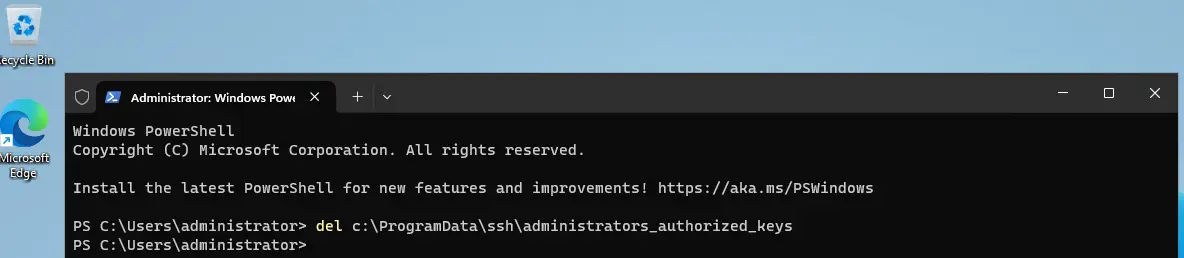
Execute sysprep
Run the sysprep command to prepare the Instance for use as a golden image.
cd c:\Windows\system32\sysprep
./sysprep.exe /generalize /shutdown /oobe /unattend:c:\Scaleway\unattend.xml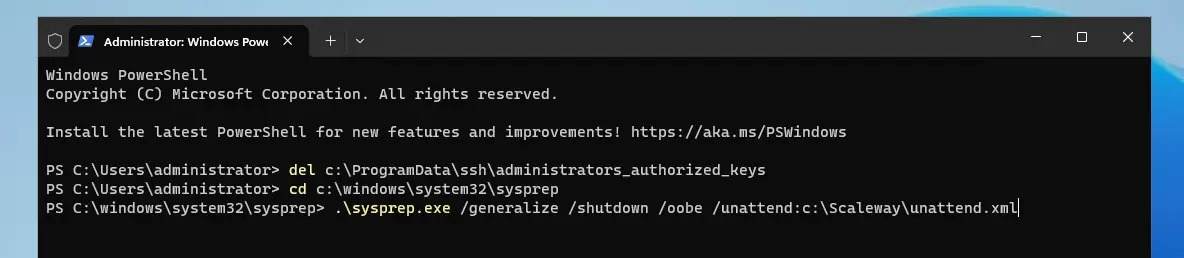
When launched, sysprep displays the following dialog box:
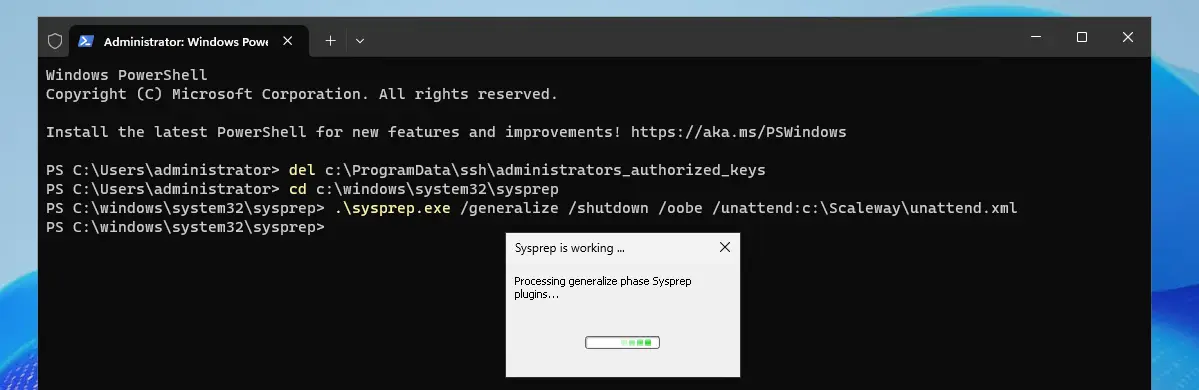
When sysprep has finished executing, the Instance will shut down by itself and go to standby mode.
$ scw instance server list
ID                       NAME     TYPE             STATE             ZONE      PUBLIC IP     PRIVATE IP  TAGS        IMAGE NAME
{UUID of your instance}  win2k25  POP2-4C-16G-WIN  stopped in place  fr-par-2  78.232.2.199  -           [with-ssh]  Windows Server 2025
Create a snapshot of the Instance volume
Use the Scaleway CLI to create a snapshot of the volume.
$ scw block volume list
ID                                NAME                              TYPE    SIZE   PROJECT ID                            CREATED AT      UPDATED AT      REFERENCES
{UUID of your instance's volume}  Windows Server 2025_sbs_volume_0  sbs_5k  25 GB  {Project iD}  55 minutes ago  55 minutes ago  1
|main=|caribou@marvin:win2k25$ scw block snapshot create name=win2k25-golden-image volume-id={UUID of your instance's volume}
ID                   {snapshot Id}
Name                 win2k25-golden-image
ParentVolume.ID      {UUID of your instance's volume}
ParentVolume.Name    Windows Server 2025_sbs_volume_0
ParentVolume.Type    sbs_5k
ParentVolume.Status  in_use
Size                 25 GB
ProjectID            {Project ID}
CreatedAt            now
UpdatedAt            now
Status               creating
Zone                 fr-par-2
Class                sbs
Test the golden image
Test your golden image by starting a new Instance using the newly created snapshot.
scw instance server create name=win2k25-clone image=none root-volume=sbs:{snapshot Id} type=POP2-4C-16G-WIN admin-password-encryption-ssh-key-id={IAM Id of the RSA ssh key} tags.0="with-ssh" -o template='{{ .ID }}'
{Instance UUID}
scw instance server get-rdp-password {Instance UUID} key=~/.ssh/{your RSA ssh private key} -w
Username           Administrator
Password           {administrator's password}
SSHKeyID           {IAM Id of the RSA ssh key}
SSHKeyDescription  {description of the ssh key}